You can give an image in an article or page a second image that is shown only on phones — for example, a wide banner on desktop and a tall version of it on phones.
How it works
- On screens no wider than the phone image breakpoint (699px by default), readers see the phone image. On wider screens they see the original (desktop) image.
- The reader's browser picks which one to show. You only need to put both images in the article.
Adding a phone image
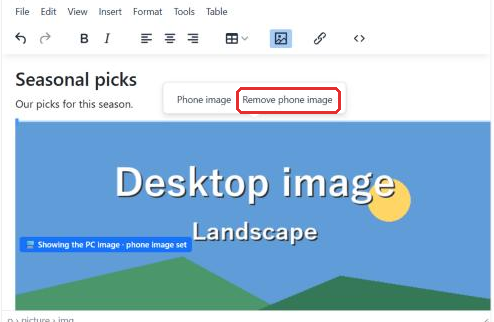
- In the article or page editor, click the desktop image to select it. A Phone image button appears above it.
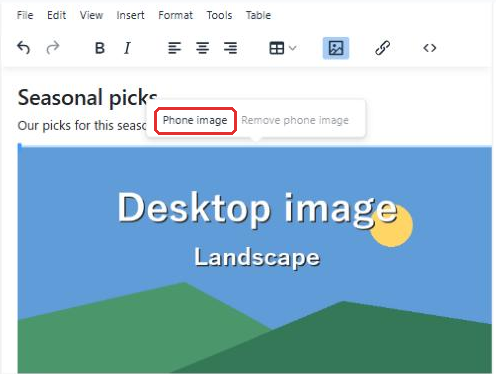
The buttons that appear when you select an image. Remove phone image becomes available once a phone image is set. - Click Phone image.
- In Select media, pick the image to show on phones. You can also add a new one with Upload.
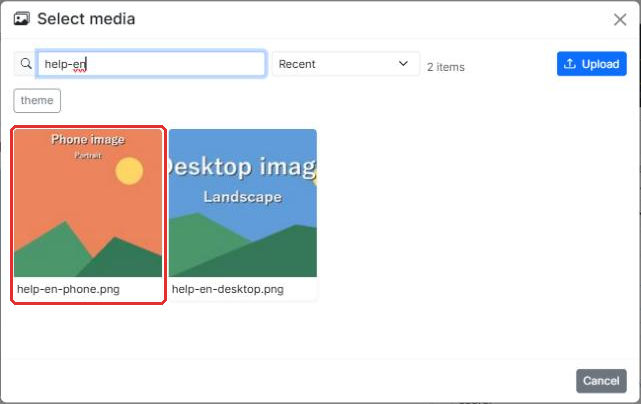
Pick the phone image. Type in the search box to narrow the list. - Save with Save Article (or Save draft).
Badges in the editor
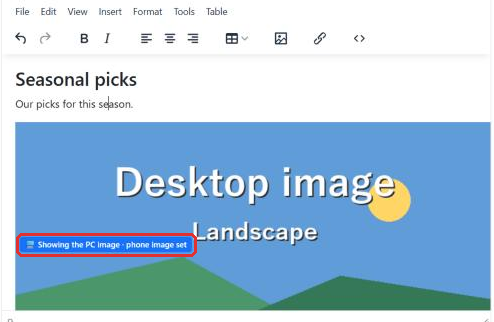
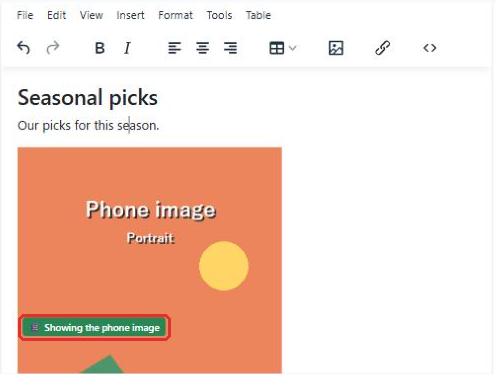
An image that has a phone image gets a badge in the editor. Readers never see it. Which of the two images the editor shows depends on how wide the editor is.
- Showing the PC image · phone image set (blue) — the editor is wider than the breakpoint, so it shows the desktop image. A phone image is set.
- Showing the phone image (green) — the editor is at or below the breakpoint, so it shows the phone image. Make the browser window wider to see the desktop image again.
Checking it at phone width
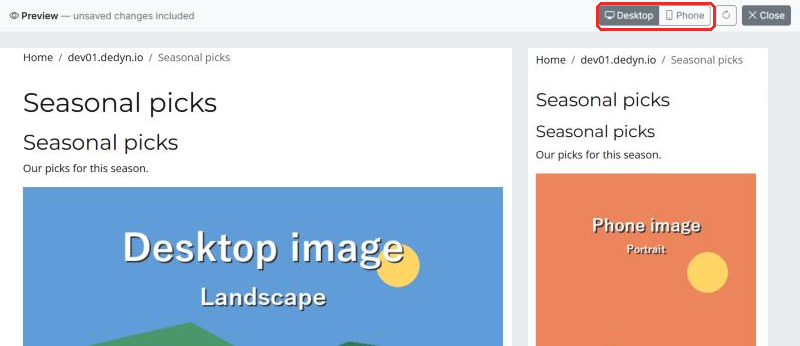
- Click Preview draft in the editor. The preview includes changes you have not saved yet.
- Click Phone at the top of the preview to see the page at phone width. Desktop switches back.
Changing or removing a phone image
- Use a different image — select the image, click Phone image, and pick the new one.
- Remove it — select the image and click Remove phone image. Only the desktop image is left.
Changing the breakpoint
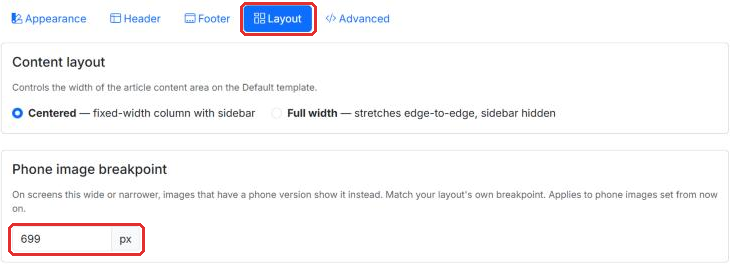
Set the breakpoint in the channel's Theme › Theme › Layout, under Phone image breakpoint. The default is 699px. Match it to the width at which your site's design switches to its phone layout. It works for channels that use custom layouts too, because the breakpoint is written into the image's HTML when you set a phone image.
A new breakpoint applies to phone images you set from now on. Phone images already in your content keep the breakpoint they were set with.
Troubleshooting
- The Phone image button doesn't appear — make sure the image is selected (click it). An image shown as a CSS background (background-image) can't have a phone image.
- The image looks stretched on phones — if the original image has a width and height set, some site CSS shows the phone image at that same size. Remove the image's width and height, or give images
height: autoin your site's CSS.