You can save an article or page as a draft instead of publishing it. Work on a new article, or on changes to one that is already live, before readers see anything.
The save buttons
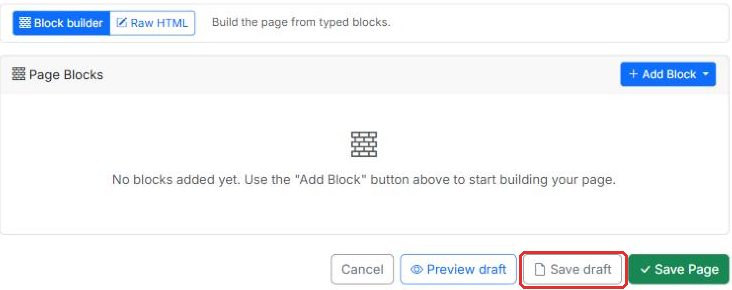
- Save draft — saves without publishing. What readers see does not change.
- Save Article (Save Page for pages) — saves and publishes at the same time. When there is a draft, this button reads Publish.
- Preview draft — shows what is on screen, unsaved changes included, the way it will look on the public page.
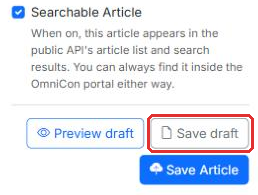
Saving a new article as a draft
- When you have written the article, click Save draft.
- You see "Saved as a draft. It is not published yet." While "Not published yet" shows at the top of the editor, readers cannot see the article.
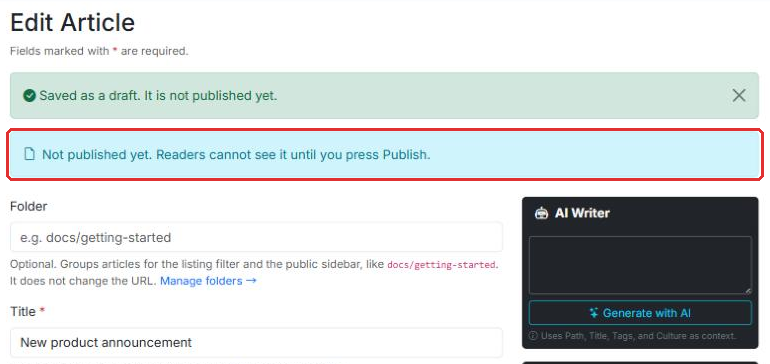
A draft of an article that has never been published. - When it is ready, click Publish. The publish date becomes the moment you click it. If Publish Since is set to a future date, the article goes live at that date instead.
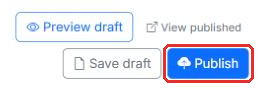
When there is a draft, the save button reads Publish.
Changing a live article without publishing yet
Click Save draft on an article that is already published, and your changes are kept as a separate draft. Readers keep seeing the published version.
- The top of the editor says "You are editing an unpublished draft", with when it was last saved and by whom.
- The next time you open the editor, you pick up where the draft left off.
- When you are done, click Publish to make the draft live.
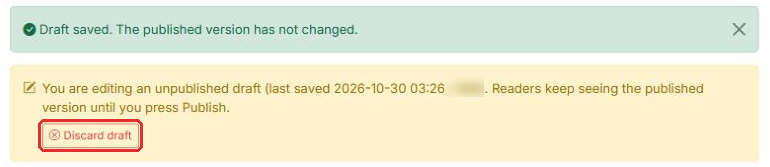
Throwing a draft away
To drop the draft and go back to the published version, click Discard draft and confirm. The published version stays as it is.
When the published version changes after you start a draft
If the published version changes after you started the draft — through the API or MCP, or by restoring a version from the version history — the editor says "The published version has changed since this draft was started". Publishing the draft overwrites that change. The overwritten version stays in the version history, so you can bring it back.
Telling them apart in the list
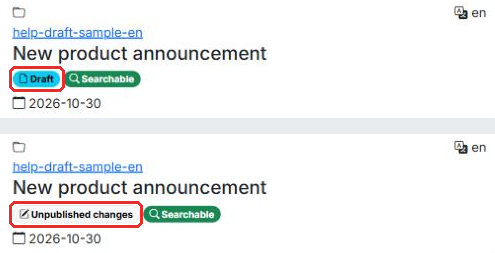
The article and page lists show where each item stands:
- Draft — never published. Readers cannot see it.
- Unpublished changes — published, with a draft that is not live yet. Readers see the published version.
- Scheduled (with a date) — Publish Since is in the future. It goes live at that date.
Pages work the same way
The page editor has Preview draft and Save draft too, and they work the same as for articles. The save button is Save Page, and it reads Publish when there is a draft.
Where drafts show up
- Drafts are only visible in the OmniCon portal (the editors and the lists).
- The public site, the public API and site search only ever show the published version.